Ableton Live for Mac & Windows
August 18, 2026
7 Best Free VST Plugins 2026
August 19, 2026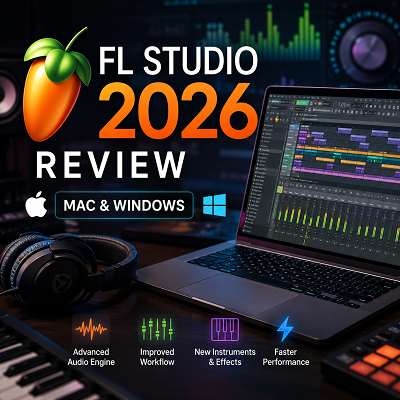
FL Studio is a digital audio workstation (DAW) from Image-Line. It runs on both Windows and macOS and is used for beat making, music production, composition, sound design, recording, mixing, and VST-based workflows.
The current version is FL Studio 2026. Image-Line released it as a major update with changes to FLEX, Piano Roll, Audio Logger, FL Cloud, Loop Starter, Gopher, and several effects and workflow tools. The current official download page lists version 26.1.3 for Windows and macOS.
I looked at FL Studio from two angles for this review. First, I checked Image-Line’s current documentation for system requirements, plugin formats, editions, licensing, and recent features. I also reviewed recent user discussions around Mac performance, Windows CPU behavior, plugin compatibility, and moving projects between operating systems.
- FL Studio itself is no longer the main Mac-versus-Windows question. Your plugins, audio hardware, project files, and system configuration matter more.
- The rebuilt FLEX engine, Audio Logger, chord detection, Audio Clip gain, and expanded FL Cloud are the standout additions in FL Studio 2026.
- Producer Edition is the safest starting point for most serious producers, since it includes recording and stem separation.
That distinction becomes important when choosing a computer for music production.
Review
FL Studio has a workflow that feels different from many traditional DAWs.
The Channel Rack is built around patterns. The Piano Roll handles MIDI editing. The Playlist arranges patterns, audio, and automation. The Mixer handles routing and processing.
I find this structure particularly useful for producers who start with a short musical idea. A drum pattern can become a full section without forcing the producer to build the entire song structure first.
The same workflow can work for composers. The Piano Roll gives detailed control over melodies, chords, bass lines, and other MIDI parts. You can write a part, edit it heavily, and then move it into the arrangement.
The Playlist is another major reason FL Studio feels different. Patterns, Audio Clips, and Automation Clips can be arranged with considerable freedom. This makes the DAW comfortable for electronic music, beat production, sample-based work, and projects that change during production. That’s a different philosophy from clip-based DAWs such as Ableton Live, which we cover in our Ableton Live review, where Session View plays a similar experimental role before you commit anything to a timeline.
FL Studio 2026
I consider FL Studio 2026 a useful update because several changes solve small production problems.
The FLEX engine was rebuilt for the 2026 release. Image-Line says the new version loads faster and uses less CPU. The update also adds more than 200 presets across eight Core Series packs.
The new chord tools are useful for MIDI work. FL Studio can detect chords in Piano Roll, which can help when checking an existing progression or developing new harmonic ideas.
Audio Logger is one of the features I find more practical. It continuously records recent audio so an idea can be recovered after it was played. Image-Line lists Audio Logger as a new 2026 feature.
The new Audio Clip gain controls also have a simple benefit. I can adjust the level of an individual clip without adding another plugin just to make that basic change.
FL Studio 2026 also expands FL Cloud. Image-Line’s current information lists automatic project backup as part of the updated FL Cloud system.
These are not features that suddenly make another DAW obsolete. Their value is cumulative. They remove small interruptions from the production process.
FL Studio on Mac
FL Studio runs on Intel and Apple Silicon Macs. The current official requirements list macOS 10.15 or newer, 4 GB of RAM, and 4 GB of free disk space. Image-Line recommends Apple Silicon, macOS 13 or newer, 8 to 16 GB of RAM, and an SSD for a better experience.
I would not use the 4 GB minimum as a buying recommendation.
For basic MIDI work, it can be enough to start the software. A modern production project is a different matter. Large sample libraries, several synthesizers, reverbs, mastering processors, and many effects can quickly require more memory and processing power.
The real Mac issue is plugin compatibility.
I reviewed recent FL Studio discussions from Mac users, and the results are mixed. Some users report very smooth performance on Apple Silicon. Others report crashes, audio glitches, UI problems, or CPU spikes.
One recent user running FL Studio on an M4 Pro reported crackling before the computer’s cores appeared close to full utilization. The report involved running multiple instances of Massive and testing both Rosetta and native operation.
I don’t treat that as proof that FL Studio performs poorly on Apple Silicon. I treat it as evidence of something more useful: overall CPU percentage is not enough to judge real-time DAW performance.
I found the same pattern in other Mac reports. One M2 MacBook Air user reported that a project that handled around 15 Serum instances in FL Studio 2025 began showing CPU spikes after moving to FL Studio 2026, with only four Serum instances loaded.
Again, I would not turn one report into a universal benchmark. Software versions, plugin versions, buffer settings, project routing, and system configuration can all change the result.
I also found the opposite experience. A recent M5 MacBook Pro user reported that FL Studio and several major plugin collections were working natively after moving from Windows. Another user reported good results with an M1 Pro.
My conclusion from these reports is straightforward:
Apple Silicon is a valid FL Studio platform, but I would check every important plugin before moving a working Windows studio to Mac.
Apple Silicon and Older Plugins
This is where Mac buyers need to be careful.
A modern Mac can run FL Studio natively. That does not guarantee that every old plugin in your collection will work natively.
I found a long-running real-world example involving M1 users. One producer reported that FL Studio itself worked on both Windows and an M1 Mac, but some older third-party plugins did not work on the M1 system. The discussion specifically mentioned older Novation plugins as an example.
I find this more useful than a generic statement that “Mac has plugin problems.”
The problem is usually not every plugin.
It is the oldest plugin you still depend on.
If your studio relies on a discontinued synthesizer, old effect, or plugin that only has an Intel build, check its current macOS support before buying a new Apple Silicon machine.
Image-Line also documents different Apple Silicon and Intel plugin situations and recommends verifying plugins when changing runtime modes.
For a new Mac setup, I would prefer native Apple Silicon versions wherever the developer provides them.
FL Studio on Windows
Windows remains a strong choice for FL Studio.
Image-Line supports Windows 10 and Windows 11. The current official requirements list Intel and AMD processors. FL Studio can run on ARM-based Windows systems, but Image-Line says those systems are not tested or optimized and are not officially supported for ARM-specific problems.
That makes a conventional Intel or AMD Windows system the safer choice for a production computer.
Windows also gives producers a much wider range of hardware configurations. A desktop can be built around a particular CPU, amount of RAM, storage system, and expansion requirements.
I would not claim that this automatically makes Windows faster than Mac.
It gives you more hardware choices.
That distinction matters.
What I Found About FL Studio CPU Problems
CPU behavior is one area where user reports can easily become misleading.
I reviewed recent Windows reports and found several cases where users saw a high FL Studio CPU meter while the Windows Task Manager showed much lower overall CPU usage.
One recent report showed FL Studio reaching very high CPU load while the computer appeared far from fully utilized. Another Windows 11 case linked high load to power-management settings and reported that changing the Windows power configuration improved the situation.
The technical explanation is important.
FL Studio’s CPU meter is concerned with the time available to process audio buffers. It is not simply measuring how much of the computer’s total CPU capacity is being used.
I found an older but still useful explanation in the FL Studio community that describes a 90% FL Studio CPU reading as the DAW using roughly 90% of the available buffer-processing time. Once the processing takes longer than the available time, glitches and stuttering can occur.
This is why a computer can show 30% or 40% overall CPU use and still produce audio problems.
Buffer size matters.
At a low buffer, the system has less time to process each block of audio. This is useful for recording because it reduces latency. During mixing, I would normally raise the buffer when a project becomes heavy.
The same principle applies on Mac.
So I would not judge FL Studio performance by the CPU percentage in Windows Task Manager or macOS Activity Monitor alone.
VST and Plugin Support
FL Studio is a good choice for producers who rely on third-party plugins.
Image-Line supports VST, VST3, CLAP, and its own native plugin format. macOS also supports Audio Units.
For anyone working on both Mac and Windows, there is one rule I would follow:
Use VST, VST3, or CLAP when possible.
Audio Units are specific to macOS. A Windows installation cannot load the AU version of a plugin.
This becomes important when a project moves between computers.
For example, if I build a project on Mac using an AU synthesizer and then open that project on Windows, FL Studio cannot simply turn the AU instance into the Windows VST version.
Image-Line recommends using VST when sharing projects between macOS and Windows because the formats use different plugin identification and naming systems.
I also found recent community discussions where users asking about Mac setups were directed toward the same VST-versus-AU issue.
For a studio that moves between platforms, I would install the same VST3 version on both systems whenever possible. If you want a free, fully cross-platform VST3 to test that setup with, our review of MNTRA’s FLTRS-LE filter covers a plugin that installs cleanly on both macOS and Windows without any format headaches.
That removes one unnecessary compatibility problem.
Moving Projects Between Mac and Windows
FL Studio projects can be moved between macOS and Windows.
The bigger question is whether everything inside the project is available on the second computer.
I would check four things before moving a serious project:
FL Studio version.
A project saved in a newer version may not open correctly in an older version.
Plugin format.
Use VST, VST3, or CLAP for better cross-platform compatibility.
Plugin version.
The same plugin should be installed on both computers.
Samples.
The project needs access to the same audio files and sample libraries.
This is where many “FL Studio Mac versus Windows” problems actually come from.
The DAW opens.
The project opens.
Then a few instruments are missing.
That is not a platform problem. It is a project-dependency problem.
Image-Line’s documentation recommends matching the plugin versions and formats when moving projects between systems.
FL Studio Editions
FL Studio currently has four main editions:
Fruity Edition, Producer Edition, Signature Bundle, and All Plugins Edition.
Fruity Edition is aimed at users who mainly work with patterns and MIDI. It does not include audio recording or stem separation.
Producer Edition adds audio recording, Audio Clips, Edison, Newtime, denoising, and stem separation. Image-Line describes Producer Edition as its recommended starting point for beginners.
For most serious producers, I would start with Producer Edition.
There is little reason to pay for a higher edition just because the product page has a larger plugin count. The better question is whether you will actually use those extra instruments and effects.
Signature Bundle adds more instruments and effects. All Plugins Edition adds the broadest Image-Line plugin collection.
| Edition | Effects Included |
|---|---|
| Fruity Edition | 53 |
| Producer Edition | 59 |
| Signature Bundle | 65 |
| All Plugins Edition | 71 |
It also lists additional instruments and audio editors as the editions increase.
The exact package contents can change, so I would always check the current official comparison before buying.
Lifetime Free Updates
This is one of FL Studio’s strongest ownership features.
Image-Line includes Lifetime Free Updates with its paid editions. The company says customers receive future updates for their purchased edition without paying another upgrade fee.
There is an important detail.
Lifetime Free Updates apply to the edition you own. A new plugin or feature may belong to a higher edition.
So I would interpret the policy as:
You keep receiving updates to your purchased FL Studio edition.
I would not interpret it as:
Every future Image-Line product becomes free for every customer.
That distinction prevents confusion when comparing FL Studio’s ownership model with other DAWs.
My Mac vs Windows Assessment
After reviewing Image-Line’s documentation and recent user reports, I would not choose a platform based on FL Studio alone.
For a new Apple Silicon Mac, I would first check the plugins I use every week. I would especially check old plugins that I cannot easily replace.
For Windows, I would pay more attention to the CPU, motherboard, RAM, SSD, audio interface drivers, and power settings.
I also would not use a single community benchmark to declare one platform faster.
The reports I reviewed are too varied.
I found Mac users reporting excellent native performance. I also found Mac users reporting crashes and CPU spikes. I found Windows users reporting similar CPU and audio problems.
That tells me something useful.
The production chain matters more than the logo on the computer.
If your plugins are native, your audio interface is supported, your buffer settings are sensible, and your project is well managed, both platforms can work very well.
If one critical plugin is old and unsupported, that single plugin can determine which platform makes sense.
What I Would Choose
If I were building a new FL Studio system for general music production, I would choose based on the following priorities.
For maximum hardware choice, I would choose Windows.
For portable production with Apple Silicon, I would choose a modern Mac.
For large third-party plugin collections, I would check plugin compatibility before deciding.
For cross-platform collaboration, I would use VST3 or CLAP and keep plugin versions matched.
For recording and serious production, I would start with Producer Edition.
For maximum access to Image-Line’s own plugin collection, I would consider All Plugins Edition.
For a computer purchase, I would aim for at least 16 GB RAM for serious production. Image-Line’s official minimum is only 4 GB, but its own recommended Mac and Windows configurations move to 8 to 16 GB and an SSD.
For large orchestral templates or very heavy sample libraries, I would go beyond that baseline.
The Best Way to Test FL Studio
Image-Line makes this unusually easy.
The official FL Studio trial is fully functional and does not expire. The main limitation is that saved projects cannot be reopened until the software is unlocked.
I recommend testing the trial with the workload you actually use.
Do not create an empty project and decide that the computer is fast enough.
Open a real project.
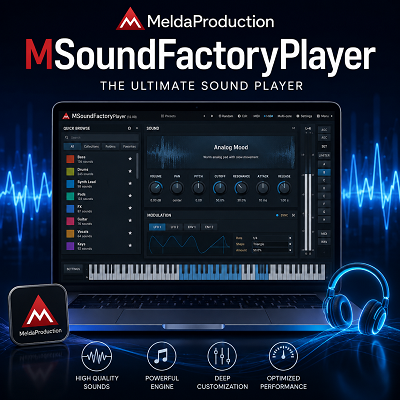
Load your main synthesizers. If you don’t already have a few loaded for testing, our roundup of free synth plugins is a quick way to get several running, and MeldaProduction’s MSoundFactoryPlayer is worth adding too, since its MonasteryGrand piano is a large sampled instrument that will actually stress-test your buffer settings.
Open your largest sample library.
Connect your audio interface.
Use your normal sample rate.
Try your usual recording buffer.
Then mix at a higher buffer.
This gives you a much more useful answer than a synthetic benchmark.
Image-Line itself tells users to download the trial and test FL Studio on their own hardware.
That is advice I agree with.
Features
- Windows and macOS support
- Native Apple Silicon support
- Intel Mac support
- Windows 10 and Windows 11 support
- Powerful Piano Roll
- Channel Rack pattern workflow
- Flexible Playlist
- Full Mixer and advanced routing
- Audio recording in Producer Edition and higher
- Stem Separation in Producer Edition and higher
- VST plugin support
- VST3 plugin support
- CLAP plugin support
- Audio Unit support on macOS
- Edison audio editor in Producer Edition and higher
- Newtime in Producer Edition and higher
- Chord Generator
- Chord detection and updated chord tools in FL Studio 2026
- Audio Logger
- Audio Clip gain controls
- Loop Starter
- Gopher assistant
- Rebuilt FLEX engine
- New FLEX content in FL Studio 2026
- FL Cloud project backup options
- Lifetime Free Updates
- Cross-platform FLP project support
- Free, fully functional trial
- Four main editions: Fruity, Producer, Signature, and All Plugins
Conclusion
FL Studio is a strong choice for music producers, composers, editors, beat makers, and VST users.
Its biggest strengths are the Piano Roll, pattern workflow, Playlist, Mixer, plugin support, and long-term update policy.
FL Studio 2026 also adds useful production tools. The rebuilt FLEX engine, Audio Logger, chord features, Audio Clip gain, Loop Starter, Gopher, and expanded FL Cloud features improve everyday work without changing the core workflow that made FL Studio popular.
The Mac versus Windows decision needs more care.
I would choose Windows when hardware flexibility and older Windows software are important. I would choose Apple Silicon Mac when portability matters and my essential plugins are properly supported.
The real-world reports I reviewed do not justify saying that FL Studio is simply better on one platform. I found excellent Mac experiences, serious Mac complaints, and Windows users dealing with their own CPU and configuration problems.
For cross-platform work, I would use VST3 or CLAP whenever possible. I would keep the same plugin versions on both computers and avoid relying on AU for projects that need to open on Windows.
For most producers, Producer Edition is the safest starting point. It includes the recording and core audio features that make FL Studio suitable for complete production rather than only pattern creation.
If you’re still weighing FL Studio against other workflows, our Ableton Live review covers the clip-based alternative in the same amount of detail, which makes it a useful side-by-side before committing to either one.
Don’t choose the computer first and FL Studio second. Choose the complete production system. Check the DAW. Check the plugins. Check the interface. Check the sample libraries. Then test your actual projects.
That approach gives you a much better answer than a Mac-versus-Windows argument ever will.
Try FL Studio Free
Download the fully functional, non-expiring FL Studio trial and test it with your own synths, samples, and audio interface.